BE READY BEFORE YOUR GUESTS ARRIVE
Host setup & support
Set up the day before. Run your final check 30–60 minutes before the party. This setup center and the free test screen do not start your paid hosting period.
FREE STREAMING CHOICE
Show your game board with YouTube Live.
Use free OBS Studio and YouTube Live. This option needs no VRCDN or Patreon subscription. Your game pass is separate.
Set up at least 24 hours before your first event. YouTube’s first-time live activation can take up to 24 hours. The PDF starts with account setup, connecting OBS, and putting the watch link on the VRChat board.
The board stream stays silent. Mute all OBS audio sources. For Music Bingo, the DJ uses the venue’s separate audio setup and is not heard through the board or player screen.
Start with the free test screen before activating a paid game. Check playback and delay with PC and Quest viewers when both will attend. YouTube instructions are on PDF pages 1–2; display pictures are on pages 6–7.
Optional paid VRCDN setup
YouTube users can use the free PDF above and skip Patreon setup.
FIRST-TIME HOSTS · START HERE
Patreon, VRCDN & OBS: the complete setup
Choose who will provide the broadcast before buying a streaming subscription. Players can join the game without setting up OBS or Patreon.
Running your own stream?
OBS Studio is free. To run your own VRCDN stream, VRCDN's guide requires a paid Patreon membership (VRCDN 40 or higher). This recurring subscription is separate from your game pass. Check the current price, currency, taxes and renewal terms on Patreon before subscribing. Creating a free account alone does not provide that paid streaming access.
Using a streaming partner?
If a venue, DJ or streaming partner is providing the broadcast, ask them to confirm their working stream and run the test with you. You and your players do not each need to buy a separate VRCDN membership for that broadcast. Agree any partner fees directly; streaming service is not included with a game pass. Keep account passwords and the main stream key private.
The steps below are for the person running the stream. Start the day before your party. If you already have a working stream, confirm it with the free test.
Join VRCDN on Patreon
- On the computer that will stream, open patreon.com/vrcdn. Sign in to your existing Patreon account or create a member account. You are joining VRCDN; you do not need to create your own creator page.
- Choose a paid VRCDN streaming membership. The official guide specifies VRCDN 40 or higher. Read the plan's viewer allowance and choose one that fits everyone watching your stream.
- Review the recurring price and complete checkout on Patreon. Confirm that your VRCDN membership and payment are active before moving on. If you already have an active membership, use it.
Connect Patreon to your VRCDN account
- In the same browser, open panel.vrcdn.live. Use the Patreon sign-in option and the same Patreon account that holds the active membership. Complete any registration or authorization prompts shown by VRCDN.
- Already created a separate VRCDN account? In Account Management, open My External Logins and use the Patreon connection option if offered. Authorize the account with your paid membership. A matching email address alone is not proof that the accounts are linked.
- Keep Patreon and VRCDN open in separate browser tabs so you can return to either. If a link does not open, type its address directly into the address bar and press Enter.
Wait for the membership to sync, then open Live
- VRCDN says subscription details can take 30 minutes to 2 hours to arrive from Patreon. Set up ahead of your party. This is an estimated sync window, not a promise of immediate activation.
- Return to panel.vrcdn.live and refresh. Once streaming access is available, open Live. Look for your Stream Key, playback URLs and Preview. Account Management only shows profile and login settings; that screen alone does not confirm streaming access.
- If access is still missing after the documented sync window, check the active membership and connected Patreon account, then contact VRCDN support. Do not pay again just to try to unlock the page.
Install and open OBS Studio
- Download OBS Studio from obsproject.com/download on the streaming computer. Choose your operating system, run the installer and open OBS. Follow its permission prompts as needed for the sources you will capture.
- If OBS is already installed, check for updates before the party and restart if needed. Test again after updating. A phone or standalone headset alone does not run this OBS workflow.
- Keep OBS open while streaming. If your partner runs OBS, complete the following stream test together on their setup.
Test the whole stream before activating a game
- Use https://nimmiethegameplug.com/stream-test as the OBS Browser Source URL for your first test. Follow the OBS connection, quality and VRChat board steps in this guide using that test URL. Opening this test does not start your paid game period.
- In OBS, open Settings > Stream, select Show All if needed, then VRCDN - Live. Paste your own private Stream Key from the Live page. If that service is unavailable, use Custom with the ingest Server and Stream Key shown by your VRCDN account.
- After setting video quality, press Start Streaming in OBS. Check VRCDN Preview, then put your VRCDN playback URL into the world's AVPro stream-capable board. Confirm that the test timer and marker move and text is clear. Include a Quest viewer if Quest guests will join.
- When you are ready to activate your game, replace the test URL in OBS with that room's full audience-display link. Recheck the board. Run the game from the separate private host window.
| What you copy | Where you paste it | Remember |
|---|---|---|
| Game display / free test URL | OBS > Sources > Browser > URL | Audience view. Keep the full room-specific link. |
| VRCDN Stream Key | OBS > Settings > Stream > Stream Key | Private. Never put it on the board or share it with players. |
| VRCDN ingest Server | OBS > Settings > Stream > Server (when using Custom) | Use the server shown by VRCDN; it is not a playback URL. |
| VRCDN playback URL | VRChat world's video player / stream mode | RTSP for PC-only audiences; MPEG-TS for Quest/mobile or mixed audiences. |
Stuck during sign-up?
I see Account Management, but no Live option
Open panel.vrcdn.live directly in the same browser. If you still see Account Management, check My External Logins for the Patreon connection and confirm that the linked Patreon account has the paid VRCDN membership. Allow the documented 30-minute-to-2-hour sync window. If the connection option is missing or access still fails, contact VRCDN support. The address starting with panel does not itself prove streaming access is active.
I signed up without paying. Can I stream?
A free account registration is different from an active streaming membership. VRCDN's guide requires a paid Patreon plan for your own stream. If a venue or partner is broadcasting for you, use their agreed setup instead of buying an unnecessary second membership. We cannot verify another provider's subscription or explain an individual account's access from this guide.
I paid, but Live still has not appeared
Check that the payment succeeded and the membership is active in the same Patreon account connected to VRCDN. Refresh the VRCDN panel after the sync window. If it is still missing, contact VRCDN support; do not create more accounts or pay again as a troubleshooting step.
I can see Live, but the video is offline
Signing up does not start a broadcast. Confirm that OBS has your audience display or free test source, the correct VRCDN service or ingest Server, and your Stream Key. Press Start Streaming, then check Preview on the VRCDN Live page before trying the VRChat board.
A link did not open a new tab
A new window is not required. On the streaming computer, click the browser address bar, enter the address printed in the step, and press Enter. A link opened on your phone does not open it on someone else's computer. Keep any running private game host tab open.
For Patreon-to-VRCDN account access: VRCDN support. For game room or display problems: Game Plug host support. Hide passwords, payment details, host codes and stream keys in screenshots.
Your hosting checklist
0 / 9Use a computer with OBS Studio, or arrange a streaming partner with a working broadcast. Players do not each need OBS or a streaming subscription. Confirm any partner charges before your event.
YouTube Live and OBS are free; no Patreon membership is needed for this route. For VRCDN, choose a paid Patreon streaming membership such as VRCDN 40 or higher. A game pass is separate from either streaming setup.
Free YouTube: enable live streamingOptional VRCDN: Patreon membership plans
YouTube: sign in to YouTube Studio, create a channel if needed, select Create > Go live and finish the verification prompts. VRCDN: link the Patreon account with your active membership through the VRCDN panel. Follow only your chosen service.
VRCDN users: open control panelYouTube: request first-time live access at least 24 hours before the event; activation can take up to 24 hours. VRCDN: allow 30 minutes to 2 hours for Patreon details to sync, then confirm Live, Stream Key and playback URLs appear.
VRCDN users: open control panelDownload OBS for your computer from obsproject.com/download, install it and check for updates early. Restart if needed and test again afterward. The PDF shows the Browser Source settings.
Official OBS download ↗Start with the free test URL as an OBS Browser Source. When ready to activate your game, replace that URL with the full room-specific audience-display link. Keep host controls, private codes and DJ controls off the public board.
Plushy Heist: OBS screen. Copy the full address from your OBS screen tab, including ?room= and your room code. Paste that complete link into OBS. The owner demo may use /obs without a room code.
Show pictures and exact steps ↗YouTube: select YouTube - RTMPS, connect your account, create an Unlisted broadcast and start streaming; confirm it is LIVE. VRCDN: use VRCDN - Live with your private Stream Key and check Preview. Follow the PDF for your chosen route.
OBS connection and quality settingsYouTube: paste the live broadcast watch link into the board. VRCDN: use its playback link, MPEG-TS for mixed or Quest viewers. Use AVPro / stream mode. Test movement, text and delay with PC and Quest viewers if both will attend.
Open the free test screen ↗Disable global Desktop Audio and Mic/Aux in OBS and mute every remaining Audio Mixer source. Verify the board stream stays silent while the DJ plays through the venue's separate audio setup. Run the final check 30-60 minutes before guests arrive.
These are your confirmations. The website does not inspect your OBS installation or verify your streaming account. Sign in below to save your checklist and contact support.
Your screen guide
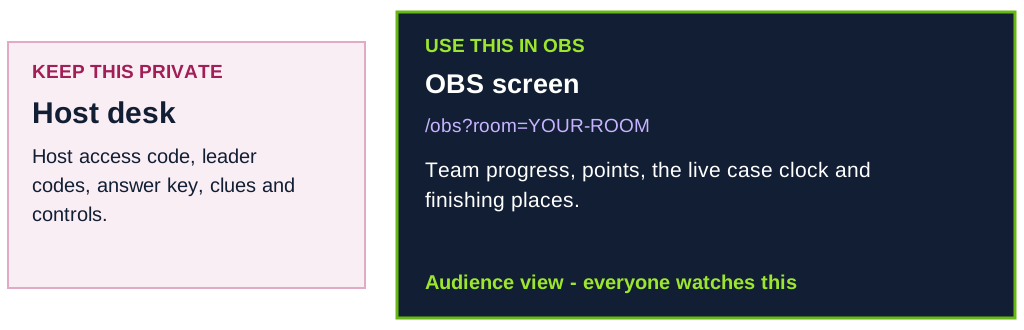
Use your own room’s OBS link for every event. Keep the host desk private and run the hunt in Popcorn Palace in VRChat. Only your room is affected by its Start, Pause and End controls.